Slack webhooks
Use Slack webhooks to receive notifications about events in your Woodpecker account directly in a Slack channel. Woodpecker automatically formats and posts messages for the events you subscribe to, across all campaigns in your account. See supported events for details about each notification and its content.
Create a Slack incoming webhook
- Create a Slack app in the workspace where you want to receive notifications. You can also use an existing app in that workspace.
- In the app settings, open Incoming Webhooks and turn on Activate Incoming Webhooks.
- Select Add New Webhook, choose the channel where Woodpecker should post, and select Allow.
- Copy the webhook URL Slack generates for that channel.
For Slack setup and workspace permissions, see Slack's incoming webhook guide.
Subscribe to Woodpecker webhooks
Send the Slack webhook URL as target_url and choose an event. To receive notifications for multiple events in the same channel, send one request per event with the same URL. See Subscribe to a Slack webhook.
Verify and troubleshoot delivery
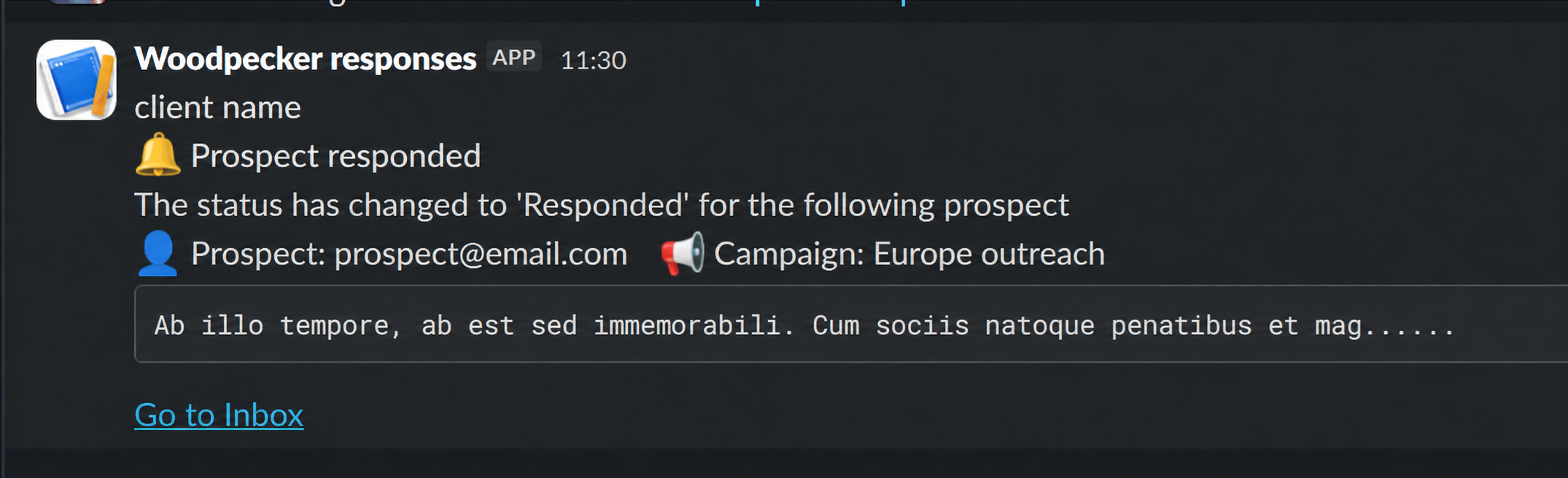
Trigger a subscribed event in a test campaign, then check the Slack channel for a notification. For example, if you subscribed to prospect_replied, change a test prospect's status to 'Responded'.
If the notification is missing, go to Integrations → Webhooks in Woodpecker and expand the webhook subscription. Verify that the event is listed and that the URL matches the Incoming Webhook URL for the intended Slack channel. If the URL is incorrect - unsubscribe using the old URL and subscribe again using the new URL.
Available endpoints
- Start receiving Slack notifications for an event with Subscribe to a Slack webhook.
- Stop sending notifications to Slack with Unsubscribe from a Slack webhook.