Connect ChatGPT and Codex to the Woodpecker MCP server
Connect Woodpecker to ChatGPT or Codex in just a few steps - no local server or API key required. Once connected, you can chat with ChatGPT or Codex to manage your campaigns, prospects, and email sequences.
Connecting ChatGPT and Codex
Choose whether you want to connect through the ChatGPT desktop app or Codex CLI.
- ChatGPT Desktop
- Codex CLI
First add the Woodpecker MCP server, then authorize access to your Woodpecker account.
-
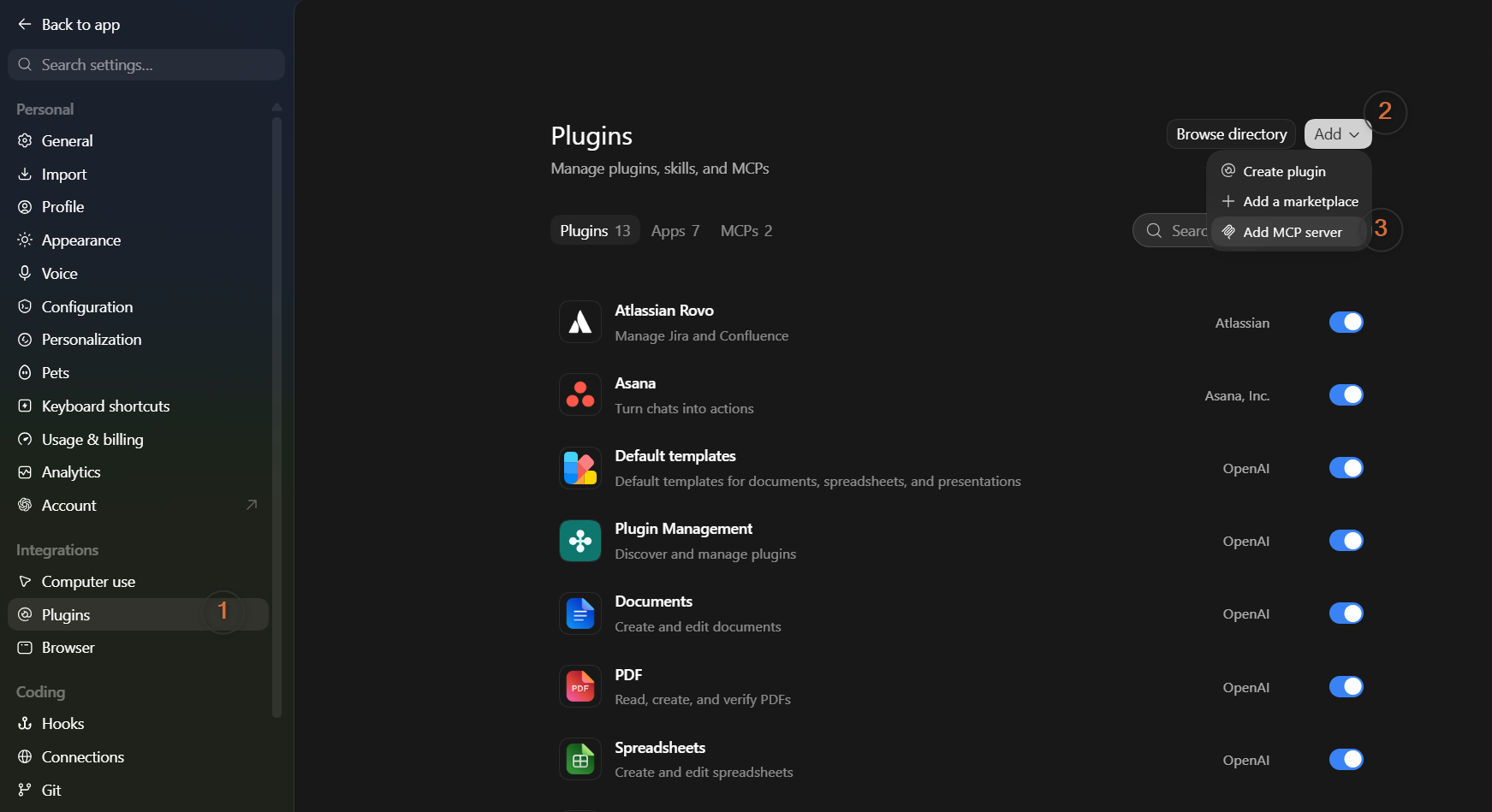
In the ChatGPT desktop app, open Settings and select Plugins.
-
Select Add in the top-right corner, then Add MCP Server.
-
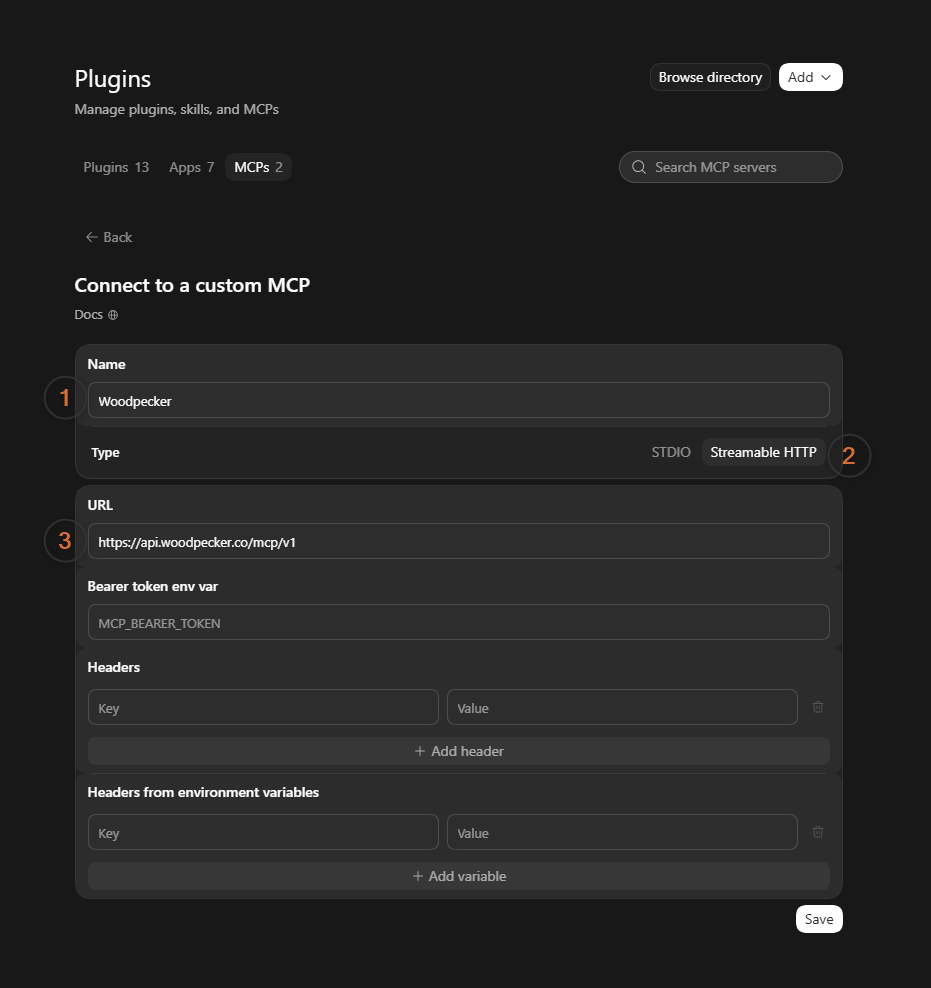
Enter a name for the server, for example
woodpecker. -
Set Type to Streamable HTTP and enter the following URL:
https://api.woodpecker.co/mcp/v1 -
Select Save.
-
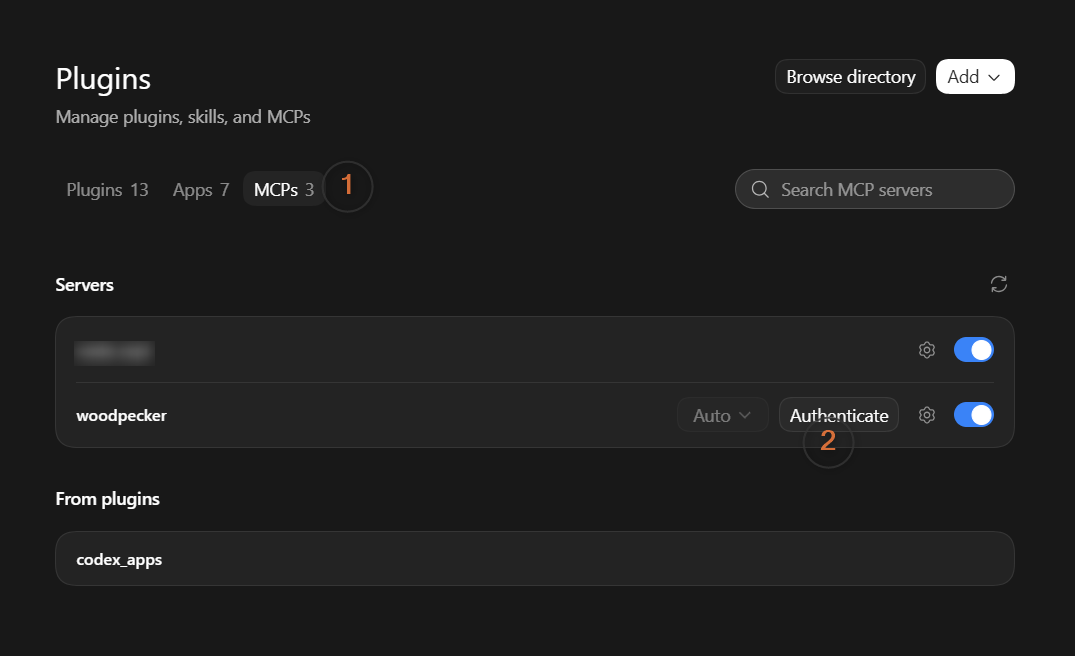
Open the MCPs tab and select Authenticate for the Woodpecker MCP server.
-
Sign in to your Woodpecker account when prompted.
-
Review the requested access and select Allow.
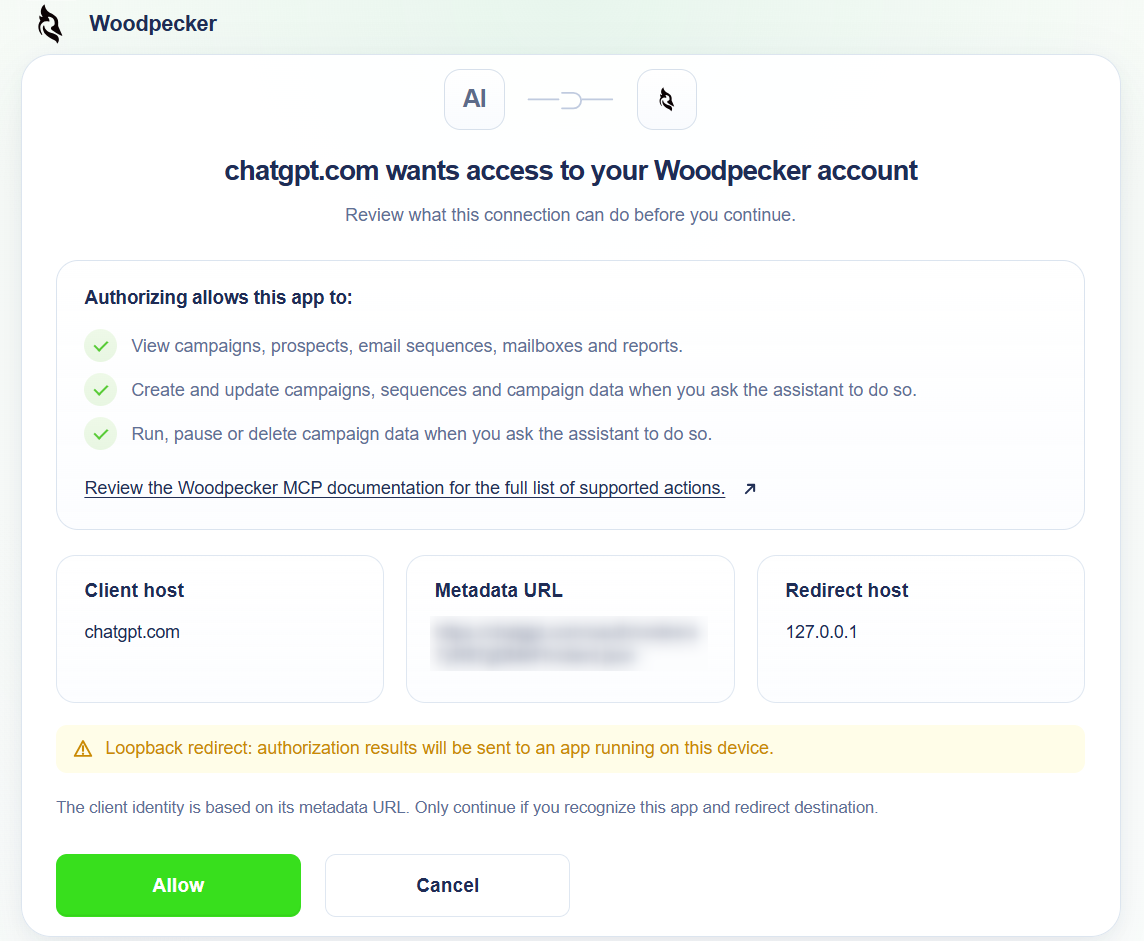
After authorization, ChatGPT can use the available Woodpecker tools.
To verify the connection, ask ChatGPT:
"What Woodpecker tools do you have access to?"
"List my Woodpecker campaigns"
Add the Woodpecker remote MCP server using the Codex CLI:
codex mcp add woodpecker --url https://api.woodpecker.co/mcp/v1
Complete the authorization if prompted. If the authorization flow does not start, run:
codex mcp login woodpecker
To check that the server has been added, run:
codex mcp list
Start a Codex session and run /mcp to check the available MCP tools. To verify access to your Woodpecker account, ask Codex:
"List my Woodpecker campaigns"
See the official Codex MCP documentation for additional configuration options.
Troubleshoot the ChatGPT or Codex connection
Authorization was not completed
Symptoms: The Woodpecker MCP server has been added, but the app still asks you to authenticate.
- In ChatGPT Desktop, open Settings → Plugins → MCPs and select Authenticate for Woodpecker
- In Codex CLI, run
codex mcp login woodpecker - Sign in to the intended Woodpecker account and complete the authorization by selecting Allow. Saving the server configuration alone does not authorize access to your account.
The app cannot connect to the MCP server
Symptoms: The app reports a connection error when adding or using the Woodpecker MCP server.
- Check that the server URL is exactly
https://api.woodpecker.co/mcp/v1 - In ChatGPT Desktop, make sure Type is set to Streamable HTTP
- In Codex CLI, use
codex mcp listto check the configured server URL